
Motion Commands Comprehensive Mastery Guide Wingaga Casino Application Canada
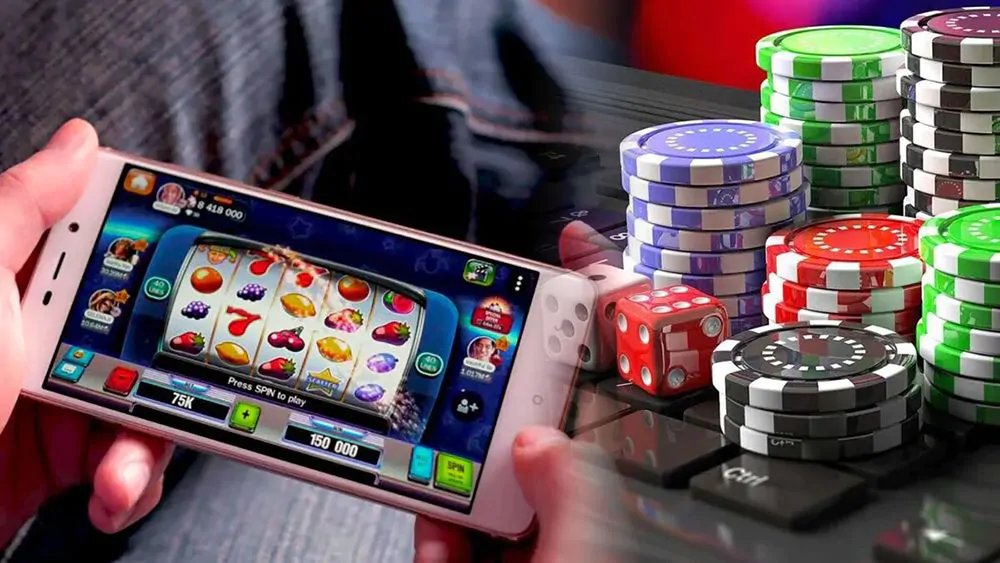
Learn how perfecting gesture controls in the Wingaga’s Casino Application can improve your gameplay adventures in Canada. By understanding instinctive swipes and taps, wingagas.com, you’ll maneuver through games effortlessly, making every gaming session more pleasurable. Visualize adjusting your device preferences for ideal sensitivity and enjoying advanced capabilities that upgrade your gameplay. But what if problems occur? With smart troubleshooting tips, you’ll be prepared. Prepared to transform your gaming experience? Let’s continue discovering.
Understanding Motion Commands in Wingaga Gambling App
While exploring the Wingaga’s Casino Application, you’ll find a variety of gesture commands that improve your gaming adventure. Motion fundamentals are at your disposal, allowing you to navigate the application with intuitive swiping and taps. You won’t require keys when motion control lets you soar through exciting features and games with ease. Swiping left, swipe right—each motion reveals a new level of engagement, making the application feel like an extension of your gaming desires.
Embrace the next generation of portable casino gameplay by mastering these gestures. Seamlessly transition between slot machines and poker activities or dive into remarkable bonus rounds with the swipe of a digit. The application’s responsiveness guarantees you remain in control, providing an adventure that’s both innovative and thrilling.
Configuring Gesture Controls on Your Gadget
To set up gesture controls on your device, start by enabling the gesture capabilities in your configuration options. Once they’re turned on, you can customize the gestures to fit your likes and improve your experience. Make sure to test your new settings to ensure everything works seamlessly and smoothly.
Enabling Motion Capabilities
As you immerse yourself in the world of gesture controls, getting them set up on your device is crucial to experiencing their full potential. Start by accessing your device’s settings menu, where you’ll find the option to enable gesture features. Activate these settings and examine gesture sensitivity adjustments to guarantee your device reacts with precision and accuracy. You want it to seamlessly incorporate into your usage pattern, after all. Once enabled, focus on setting up shortcuts that match your preferences, offering user-friendly access to your most-used apps or functions. This setup process offers a more seamless, customized navigation experience, harnessing innovative technology. By customizing these settings, you’re not just using your device; you’re transforming how you interact with it, elevating convenience and efficiency.
Customizing Gesture Settings
Now that you’ve enabled gesture features on your device, it’s time to make them truly yours by customizing gesture settings. Innovation doesn’t stop at enabling; tailoring gesture controls to fit your unique style optimizes efficiency. Begin by examining customization options to align with your user preferences. Here’s how you can personalize effectively:
- Sensitivity Adjustment
- Shortcut Configuration
- Create Custom Gestures
- Feedback Settings
Set your device apart by fine-tuning these settings for smooth navigation.
Navigating Games Using Swipe and Tap Gestures
Mastering swipe and tap gestures in gaming transforms your playtime into a fluid, immersive experience. With the right slide patterns, you unlock a new level of interaction, moving effortlessly from game to game. Think of it as a choreography—each swipe leading you effortlessly to your next big win on the Wingaga Casino App.
Understanding tap techniques further improves this dance, allowing you to control the rhythm. Rapid taps can place bets in seconds, while prolonged presses disclose game details. It’s not just about arbitrary movements; it’s creating a strategy for your gaming arsenal.
Imagine effortlessly swiping between poker and slots, tapping with confidence, and enjoying an edge only innovative gesture controls can provide. Engage yourself in the future of intuitive gaming interaction today!
Mastering Advanced Gesture Features for Enhanced Gameplay
Expanding on swipe and touch gestures, you can access a new realm of gaming with advanced gesture features. These sophisticated improvements mean ultimate control over your gaming experience on the Wingaga Casino App. Advanced gesture recognition introduces intuitive gameplay enhancements, driving your engagement to soaring heights.
Here’s how you can master these advanced features:
- Pinch to Zoom
- Tilt to Steer
- Double-Tap for Action
- Swipe-and-Hold Gesture
Use these features to transform your gameplay, embracing the edge of technology.
Troubleshooting Common Gesture Control Issues
When you encounter gesture recognition problems, it can feel like you’re constantly miscommunicating with your device. Don’t worry, though—simple fixes like recalibrating sensors or updating the software often resolve these issues. If the app responsiveness isn’t up to par, clearing the cache or restarting the app can make a notable difference.
Gesture Recognition Problems
Even with advanced technology, gesture recognition can occasionally miss the mark, leaving users frustrated. To tackle common gesture issues like gesture lagging and inaccurate gesture recognition with the Wingaga Casino App, consider these innovative solutions:
- Calibrate Your Device
- Review Lighting Conditions
- Update Software
- Check for Obstructions
These steps can greatly improve your gesture experience, taking you closer to smooth control.
App Responsiveness Fixes
Navigating the complexities of app responsiveness is crucial for a seamless gesture control interaction. If your Wingaga Casino App isn’t responding to gestures properly, there are a few modifications to take into account. First, check your device’s settings to ensure there’s no interference impacting app performance. Lag can often originate from outdated software, so ensuring your app and operating system current will boost interaction. Additionally, examine the user interface options within the app. Tweaking sensitivity settings might just enhance your control precision without overwhelming the system. Keep in mind, a clutter-free home screen helps, too, as it enables the app to run more seamlessly. With these approaches, you can enhance your app’s responsiveness, providing a clear, seamless experience every time you use it.
Tips and Tricks for Optimizing Your Gesture Control Experience
Ever think how you can optimize your gesture control experience? By adjusting your settings, you can improve how you interact with the Wingaga Casino App. Here’s a checklist to supercharge your gesture control:
- Gesture Sensitivity Adjustment
- Swipe Feedback Improvement
- Set Distinct Gestures
- Update Regularly
Utilize these tips for a futuristic, seamless app journey!
Frequently Asked Questions
Can Gesture Controls in the Wingaga Casino App Be Used for Parental Controls?
You’re inquiring if gesture navigation in casino apps like Wingaga can help with parental monitoring. While it’s innovative, you’re better off depending on traditional parental controls, as gesture navigation isn’t primarily intended for controlling access to content.
Are There Privacy Concerns With Enabling Gesture Controls on the App?
When you allow gesture permissions, verify you’re comfortable with potential data collection. Adopt innovation, but always be cognizant of how your interactions might be observed or stored. Your privacy should be a consideration when using sophisticated features.
Do Gesture Controls Work Differently on Tablets Versus Smartphones?
You’ll find that gesture controls may differ slightly between tablets and smartphones. Tablet functionality often delivers larger interaction areas, boosting accuracy, while smartphone usability guarantees quicker, smooth gestures, perfect for users desiring effective and cutting-edge experiences.
Is There an Option to Receive Notifications Through Gestures?
You can enhance your user experience by enabling gesture notifications. Simply customize your device’s settings to enable this innovative feature. It provides a smooth, advanced twist, guaranteeing you never miss important updates with just a wave.
Do Gesture Controls Affect Battery Life Significantly?
You’ve likely wondered if gesture responses affect your device’s battery consumption. While they consume power, advancements in technology lessen significant drain. Adopt the innovation, as modern features efficiently manage energy use while offering a smooth experience.
Contact Number : +91 93287 28921
All Rights Reserved. 2009-2022 SprechIndia.com